Managing Campaigns
Managing Campaigns Overview
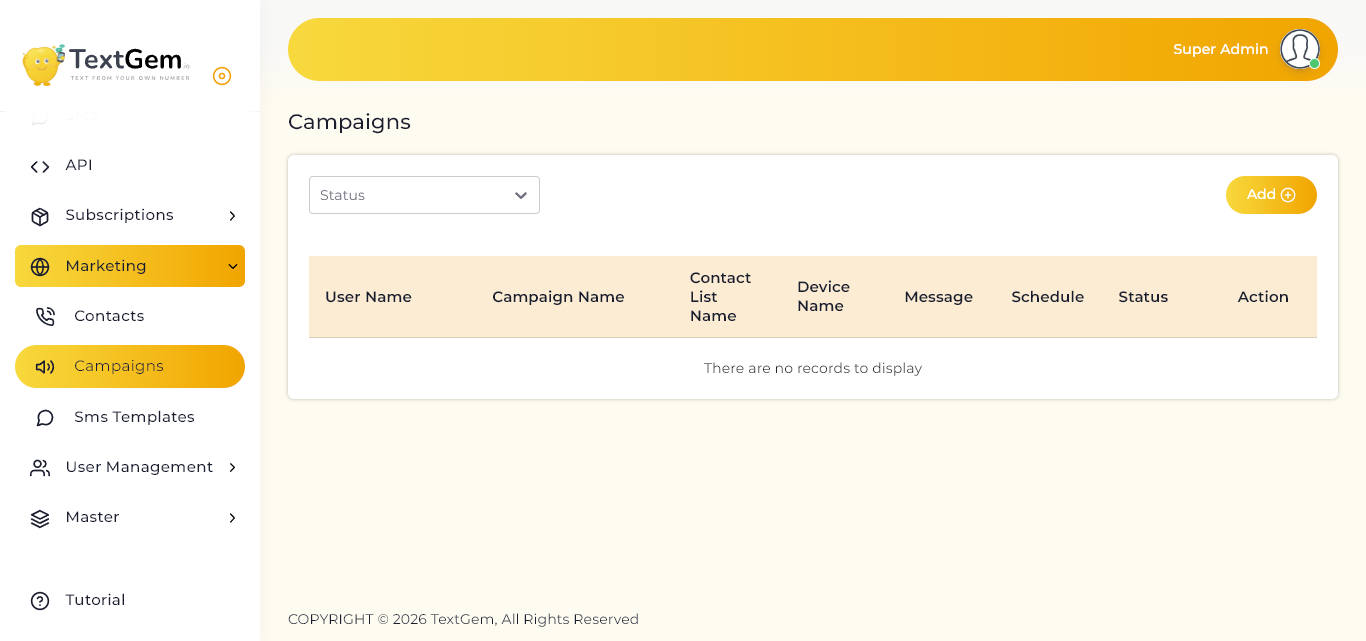
Campaigns help automate SMS communication by sending messages to selected contact lists using connected devices. Each campaign can be scheduled to run once or on a recurring basis using predefined scheduling options.
The Campaigns page also provides a centralized view of all created campaigns and their current status.
Campaign List
The Campaign List displays all configured SMS campaigns.
Available Information
Each campaign record includes:
Use the Status filter to quickly locate campaigns based on their current state.
Add a New Campaign
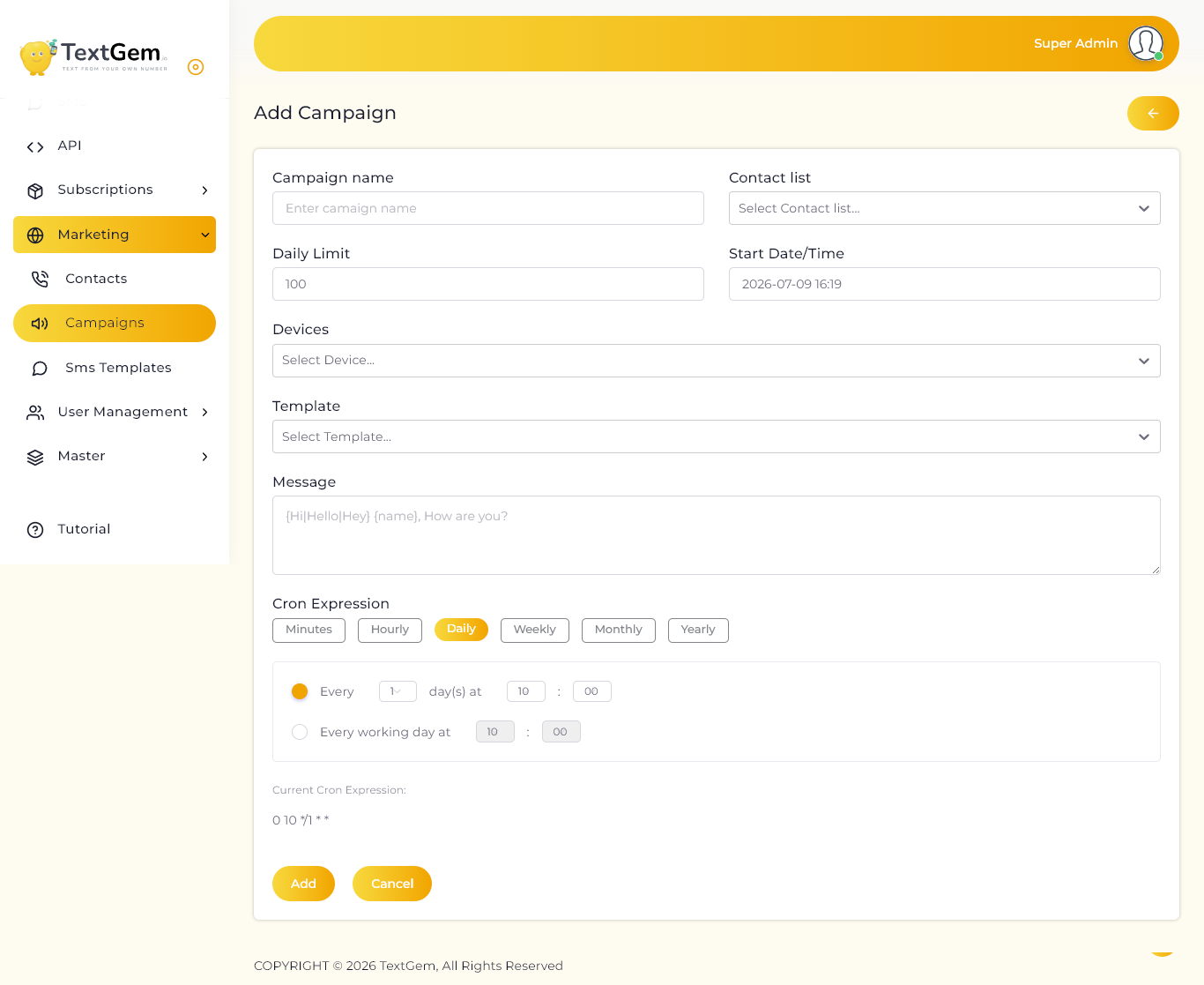
To create a new SMS campaign:
The campaign will appear in the campaign list after it has been created.
Campaign Information
Enter a unique and descriptive name for the campaign to help identify it later.
Example:
Contact List
Select the contact list that contains the recipients for this campaign.
Only contacts from the selected list will receive the SMS messages.
Daily Limit
Specify the maximum number of SMS messages that can be sent each day.
This helps control message volume and manage device usage.
Devices
Select the connected Android device that will be used to send SMS messages.
Campaign messages are delivered using the SIM card available on the selected device.
SMS Template
Select a previously created SMS template to automatically populate the message field.
Templates help maintain consistent messaging across campaigns.
Message
Enter the SMS content to be delivered.
The message field also supports placeholders for personalized communication.
Example:
{Hi|Hello|Hey} {name}, How are you?
Schedule the Campaign
Choose the date and time when the campaign should begin.
The scheduling system supports recurring execution using Cron expressions.
Available Scheduling Options
Select the scheduling option that best matches your campaign requirements.
Cron Expression
The generated Cron Expression is displayed automatically based on the selected schedule.
This expression determines when the campaign will run.
Example:
0 10 */1 * *
Save or Cancel
After completing all required fields:
Campaign Status
Each campaign displays its current execution status.
Depending on system activity, a campaign may be:
Monitoring campaign status helps ensure successful SMS delivery.