Managing Cities
Managing Cities Overview
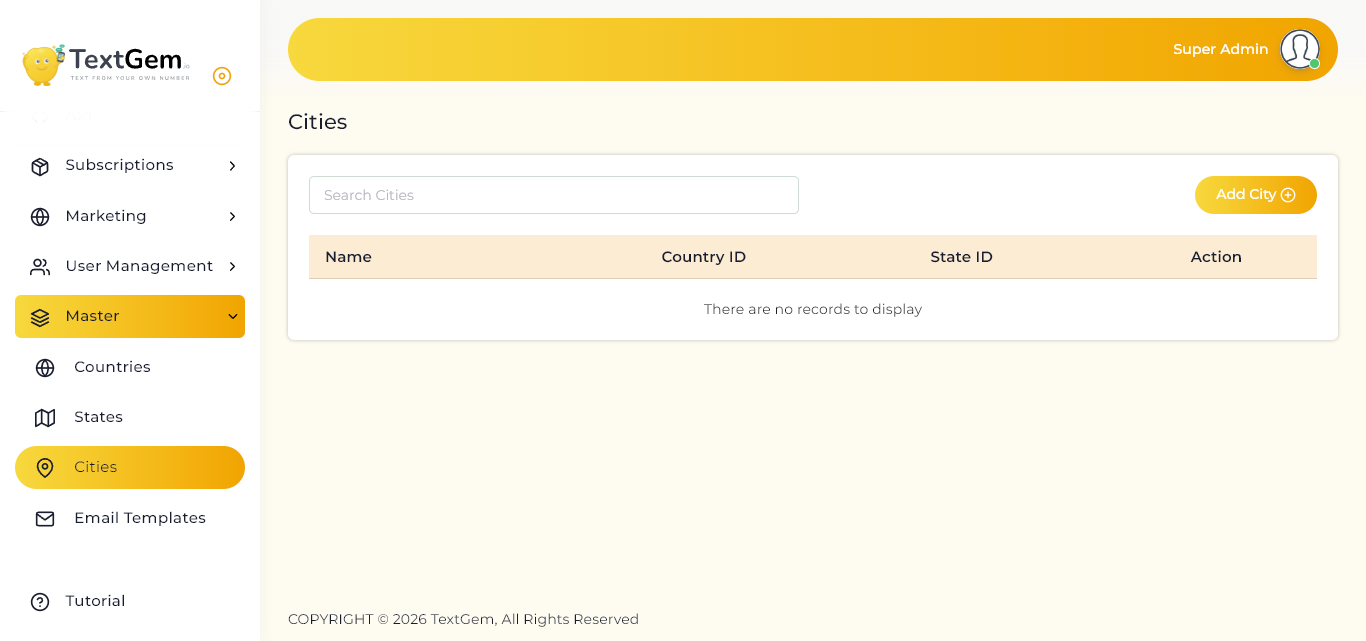
The Cities page displays all configured cities along with their associated Country ID and State ID. Administrators can quickly search for cities, add new entries, edit existing records, or remove outdated information.
Maintaining an accurate list of cities helps standardize location information across the application.
City List
The city table provides an overview of all available city records.
Available Information
Each city record includes:
If no cities have been added, the table will display a “There are no records to display” message.
Search Cities
Use the Search Cities field to quickly locate a specific city.
How to Search
Benefits
Editing a City
Existing city information can be updated whenever required.
To Edit a City
Deleting a City
Administrators can remove city records that are no longer required.
To Delete a City
Important: Deleting a city may affect records associated with that location. Ensure the city is no longer in use before removing it.
Best Practices
Adding a New City Overview
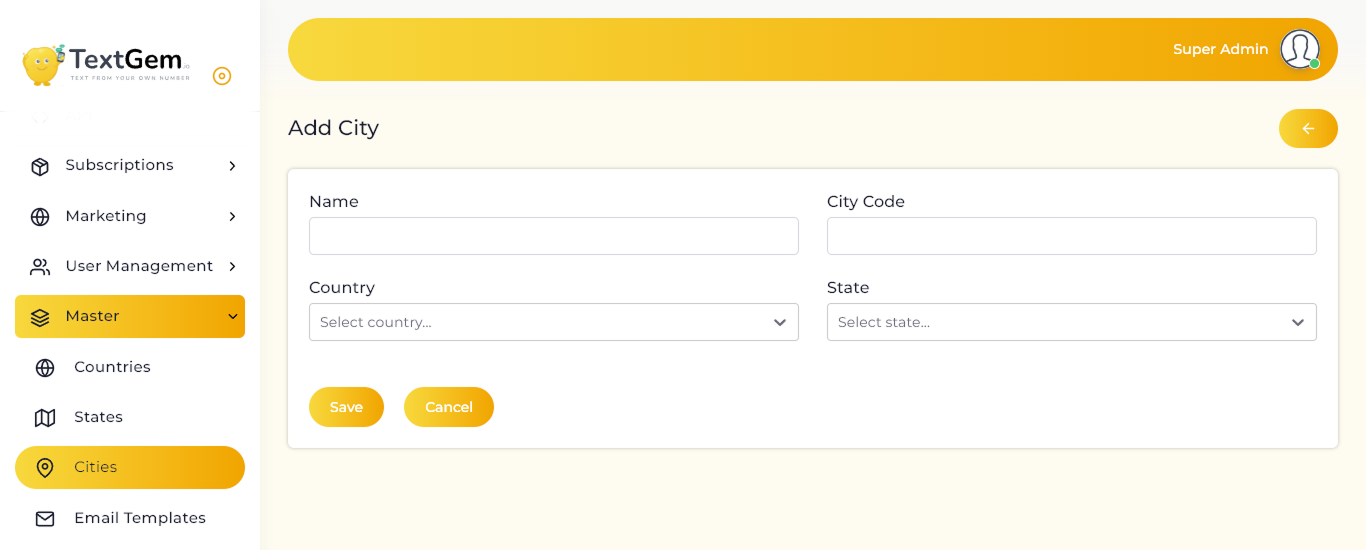
Use this page whenever you need to add a new city to the TextGem system. Before creating a city, ensure that the corresponding country and state have already been configured.
After the required information is entered and saved, the city becomes available throughout the application wherever city selection is required.
City Information
The form contains the following fields:
Name
Example:
City Code
Provide a unique code to identify the city.
Example:
Using unique city codes helps simplify identification and reporting.
Country
Select the country to which the city belongs.
The available countries are displayed in the dropdown list. Only configured countries can be selected.
State
Select the state associated with the selected country.
The state dropdown displays available states based on the selected country.
Saving the City
After entering all required information:
Canceling the Operation
If you do not want to create the city:
Validation
Before saving, ensure that: