Knowledge BaseMasterEmail Templates
Guide

Managing Email Templates
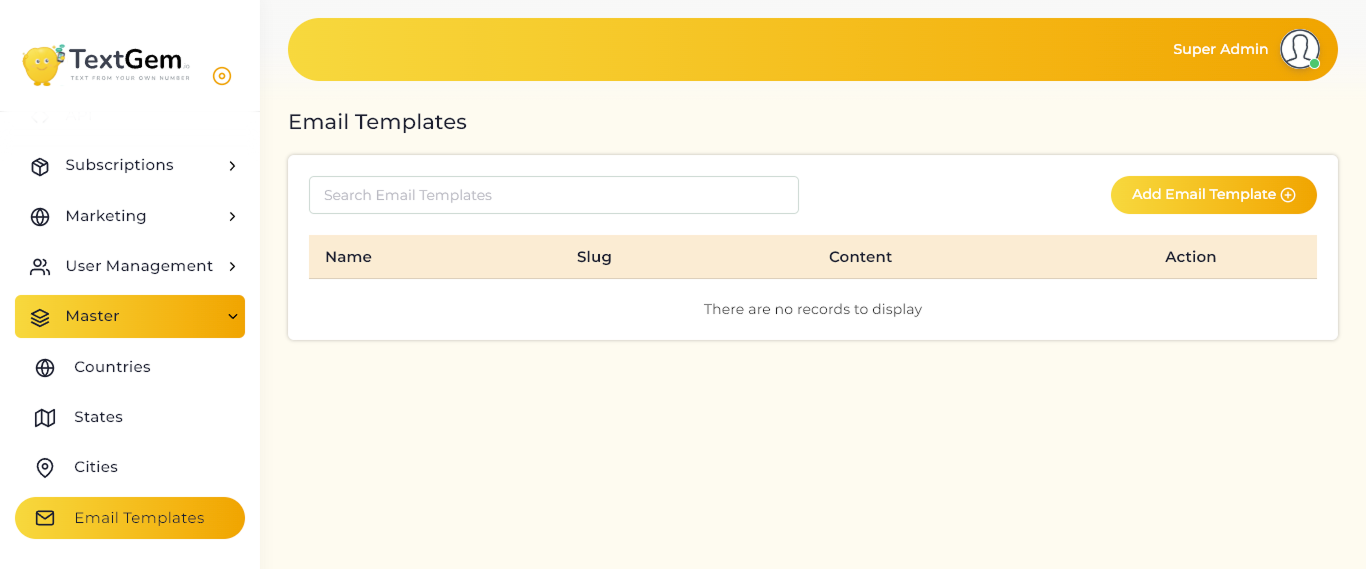
The Email Templates section allows administrators to create, manage, and maintain reusable email templates used throughout the TextGem platform. Templates help ensure consistent communication for notifications, account updates, and other automated emails.

Managing Email Templates Overview

The Email Templates page displays all available email templates along with their unique slug and content. Administrators can quickly search for templates, add new ones, edit existing templates, or remove those that are no longer required.

Using email templates reduces manual effort while maintaining a consistent format for outgoing emails.

Email Template List

The template table provides an overview of all configured email templates.

Available Information

Each template record includes:

Template Name
Template Slug
Email Content
Available Actions

If no templates have been created, the table will display the message:
“There are no records to display.”

Search Email Templates

Use the Search Email Templates field to quickly locate an existing template.

How to Search

Click inside the Search Email Templates field.
Enter the template name or related keyword.
Matching templates will automatically appear in the list.

Benefits

Locate templates instantly.
Manage large collections of email templates efficiently.
Save time during administration.

Editing an Email Template

Existing templates can be updated whenever changes are required.

To Edit a Template

Locate the required template.
Click the Edit icon in the Action column.
Modify the necessary information.
Save the changes.

Deleting an Email Template

Templates that are no longer needed can be removed from the system.

To Delete a Template

Locate the template.
Click the Delete icon.
Confirm the deletion.

Important: Deleting an email template may impact automated emails that depend on it. Ensure the template is no longer in use before deleting it.

Best Practices
Use clear and descriptive template names.
Create unique slugs for easy identification.
Keep email content professional and easy to understand.
Review templates regularly to ensure information remains accurate.
Test templates before using them in automated workflows.
Avoid creating duplicate templates for the same purpose.

Adding an Email Template Overview

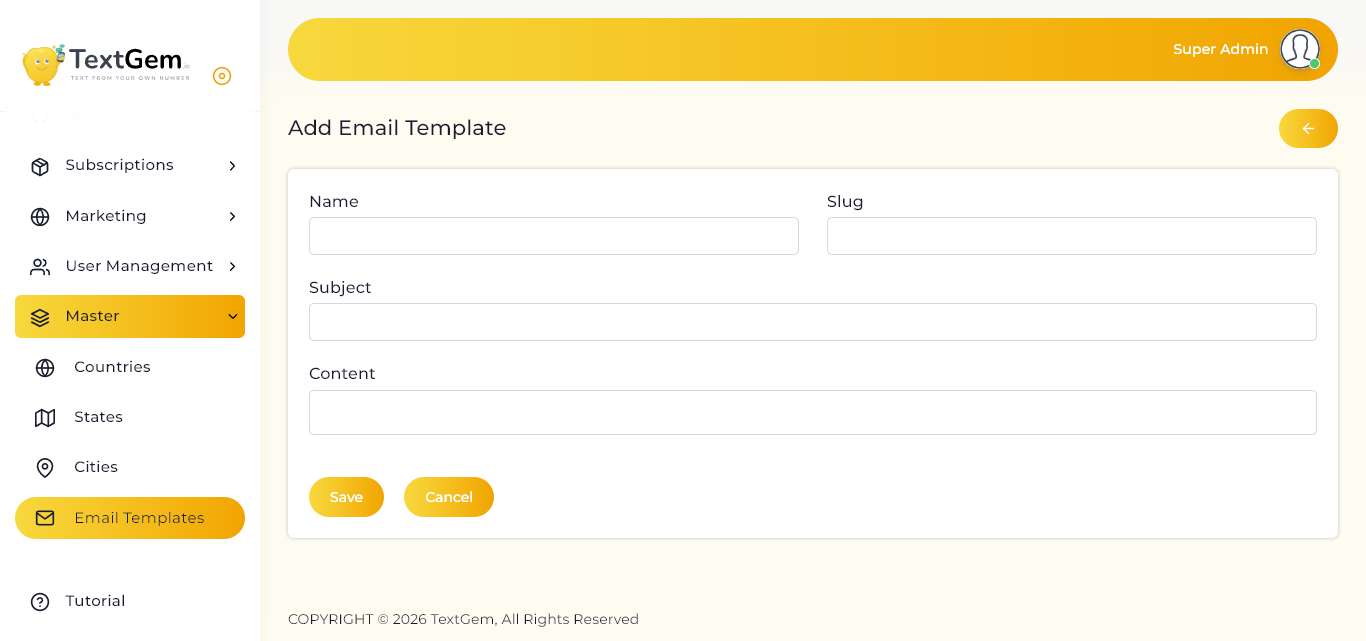
Use this page to create a new email template by providing a template name, unique slug, email subject, and message content. Once saved, the template can be used by different modules for sending automated notifications and transactional emails.

Template Information

The form contains the following fields:

Name

Enter a descriptive name for the email template.

Examples:

Welcome Email
Password Reset
Account Verification
Subscription Renewal

The name should clearly identify the purpose of the template.

Slug

Enter a unique slug that identifies the template internally.

Examples:

welcome-email
password-reset
account-verification

The slug should be unique and easy to recognize.

Subject

Enter the subject line that recipients will see when the email is delivered.

Examples:

Welcome to TextGem
Reset Your Password
Verify Your Email Address

Choose a clear and meaningful subject to improve email readability.

Content

Enter the complete body of the email.
The content should include the message, instructions, and any placeholders or variables required by the application.

Example Content:

Greeting
Main message
Action or instructions
Closing note
Company signature

Saving the Email Template

After completing all required fields:

Verify the template information.
Click the Save button.
The email template will be created successfully.
The new template will appear in the Email Templates list.

Canceling the Operation

If you decide not to create the template:

Click the Cancel button.
Any unsaved information will be discarded.
You will return to the previous page without creating a new template.

Validation

Before saving, ensure that:

A template name is entered.
The slug is unique.
The email subject is provided.
Email content is complete and properly formatted.
The template does not duplicate an existing one.

Best Practices

Use descriptive template names for easy identification.
Create unique and meaningful slugs.
Write clear and professional subject lines.
Keep email content concise, informative, and user-friendly.
Review and test templates before using them in production.
Update templates regularly to ensure information remains accurate and consistent.