Managing Devices
Overview
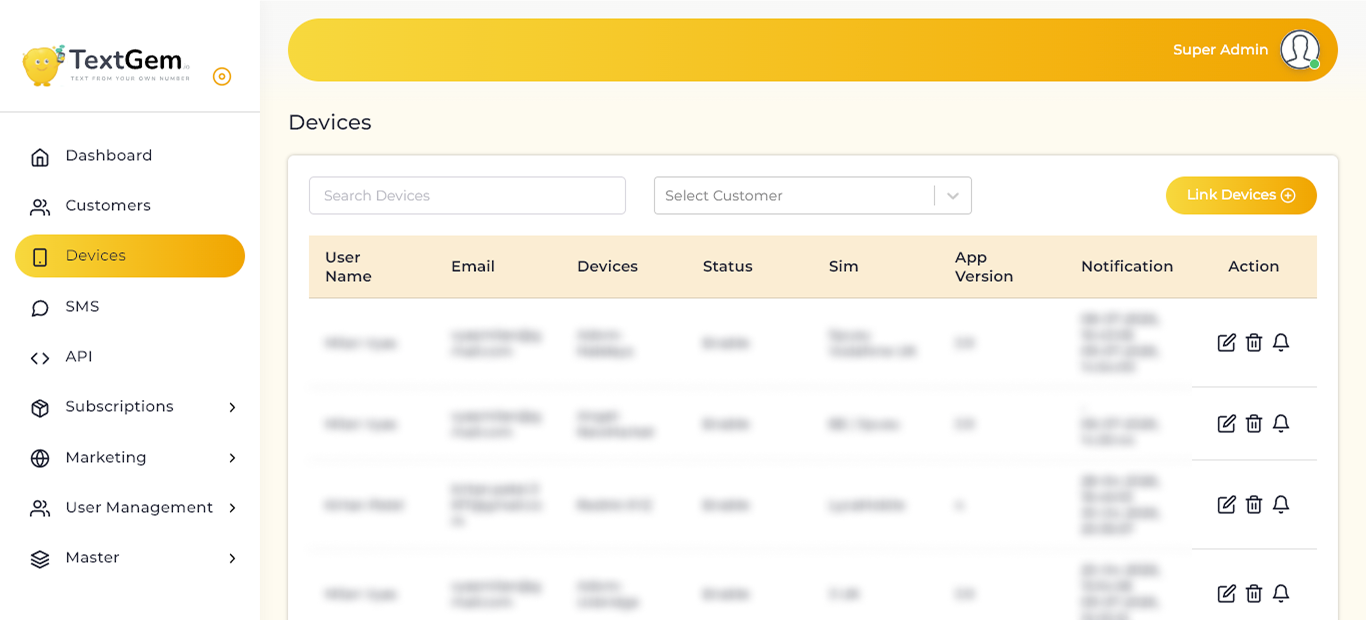
The Devices page displays all linked devices associated with customer accounts. Administrators can search for devices, filter devices by customer, link new devices, and manage existing device connections.
The information displayed helps ensure that connected devices remain active and ready to process SMS requests.
Device List
The device table provides complete information about every connected device.
Available Information
Each device record includes:
This information helps administrators quickly monitor device availability and health.
Search Devices
The Search Devices field allows administrators to quickly locate a specific device.
To Search a Device
Benefits
Filter by Customer
Use the Select Customer dropdown to display devices assigned to a specific customer.
To Filter Devices
This feature is especially useful when managing multiple customer accounts.
Linking a New Device
The Link Devices button is used to connect a new Android device to the TextGem platform.
To Link a Device
Benefits
Device Status
The Status column indicates whether a device is currently available for SMS processing.
Common Status Values
Administrators should regularly verify that important devices remain enabled.
SIM and App Information
Each device displays its active SIM provider and installed application version.
SIM Information
The SIM column helps administrators identify:
App Version
The App Version column displays the installed version of the TextGem mobile application, making it easier to identify devices that may require updates.
Notification Activity
The Notification column displays the most recent communication timestamps received from each connected device.
This information helps administrators determine whether a device is actively communicating with the platform.
Device Actions
Each device includes management actions that allow administrators to maintain and control device settings.
Available Actions
Pagination and Record Display
The Devices page supports pagination for efficient management of large numbers of connected devices.
Features
Best Practices
Editing a Device Overview
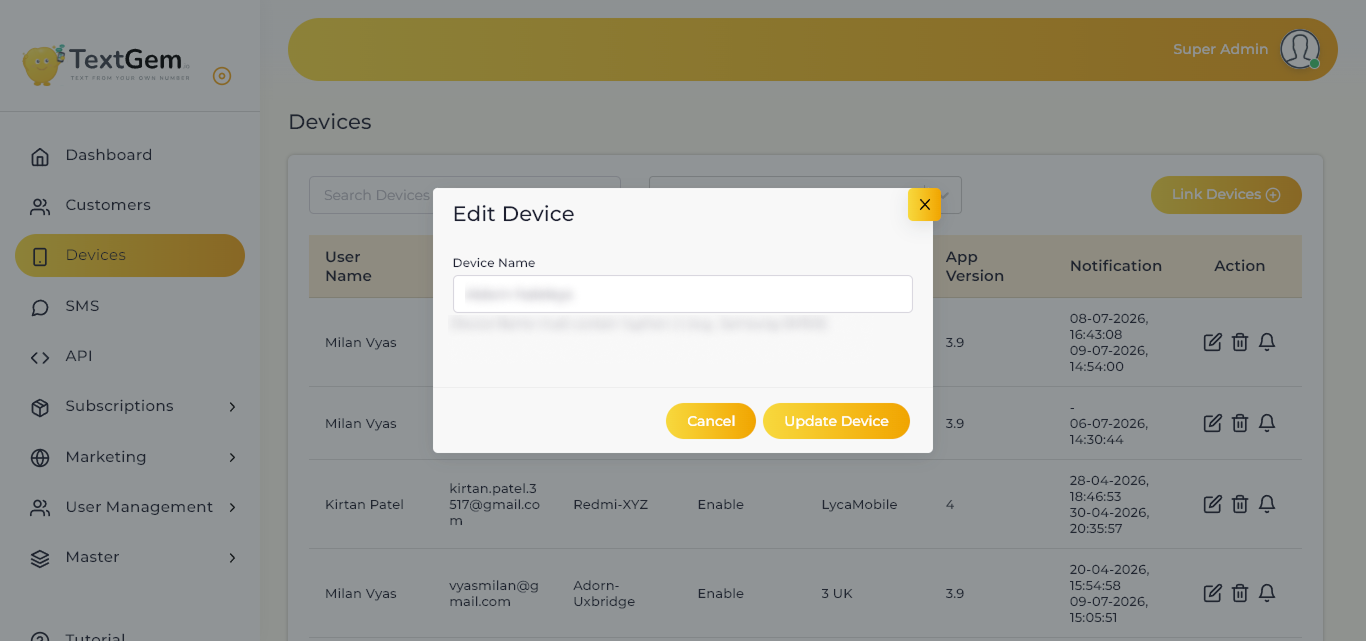
The Edit Device window provides a simple interface for modifying the device name. After entering a valid name, the changes can be saved immediately without affecting the device’s existing connection.
Update the Device Name
The Device Name field allows you to modify the display name of the selected device.
To Update the Device Name
Naming Requirement
The device name must include a hyphen (-).
Example:
- Samsung-SM100
- Redmi-Note12
- Pixel-8Pro
Using a consistent naming format helps identify devices more easily throughout the platform.
Save the Changes
After updating the device name, save the new information.
To Save
Cancel the Update
If you do not want to apply the changes, click Cancel to close the dialog without saving the updated device name.
Validation
Before saving, the system validates the entered device name.
Validation Rules
If the validation fails, an appropriate message is displayed, allowing you to correct the input before updating.
Best Practices
Linking a Device
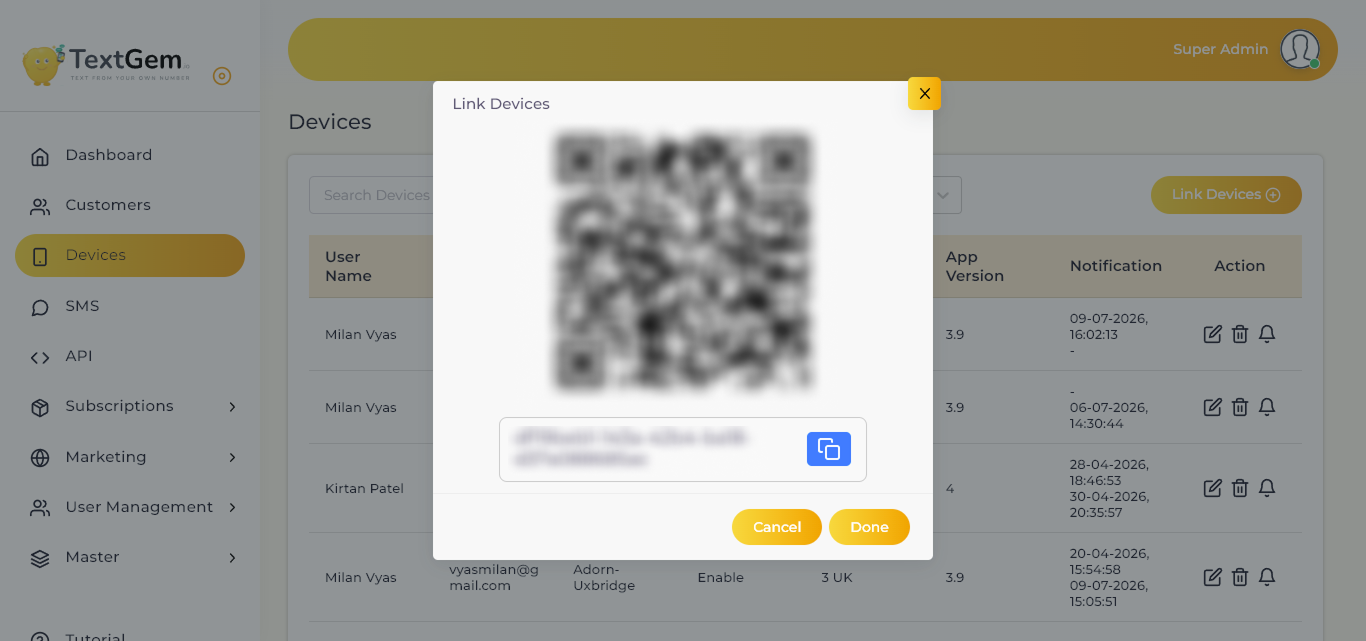
The Link Devices dialog allows administrators to connect a new Android device to the TextGem platform. Each linked device can be used as an SMS gateway, enabling messages to be sent through its installed SIM card. Devices can be linked by scanning the displayed QR code or by using the generated pairing code.
Linking a Device overview
The Link Devices window provides two secure methods for pairing a mobile device with the TextGem platform:
Once the pairing process is completed successfully, the device will appear in the Devices list and become available for SMS operations.
Scan the QR Code
A unique QR code is generated whenever the Link Devices window is opened.
To Link Using the QR Code
Benefits
Use the Pairing Code
If QR scanning is not available, you can use the generated pairing code.
To Link Using the Pairing Code
The pairing code uniquely identifies the connection request and securely links the device.
Copy the Pairing Code
The Copy button allows you to quickly copy the generated pairing code to your clipboard.
To Copy
This avoids typing errors during manual device pairing.
Complete the Linking Process
After the device has been paired successfully, finalize the process.
To Finish
The device is now ready to send SMS messages through the selected SIM card.
Cancel the Process
If you do not want to continue with device pairing, click Cancel to close the dialog without linking the device.