Guide

Managing Plans

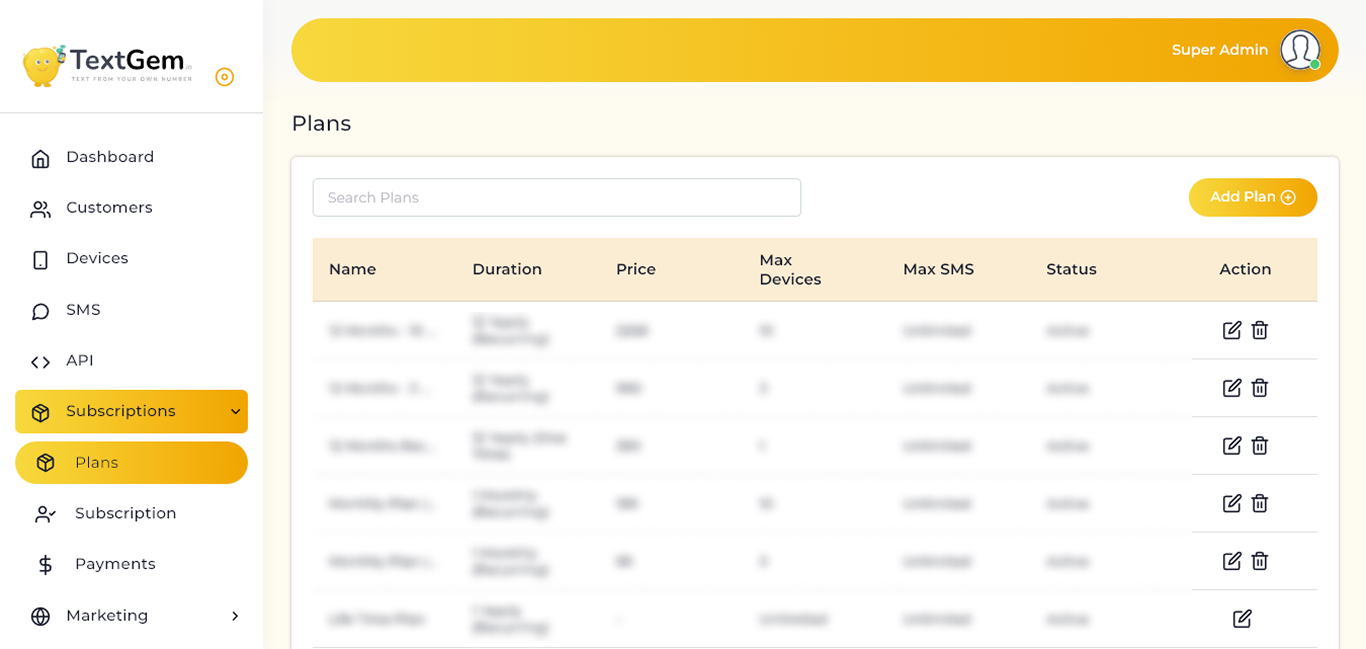
The Plans page allows administrators to create, manage, and maintain all subscription plans available within TextGem. It provides a centralized view of every plan, including pricing, duration, device limits, SMS allowances, and plan status, making it easy to manage subscription offerings.

Managing Plans Overview

The Plans page displays all subscription plans in a searchable table. Each row represents a single plan and includes key details along with actions to edit or remove the plan.

Information Displayed

Each plan displays the following information:

Name – Subscription plan name.
Duration – Plan duration and billing cycle.
Price – Cost of the subscription.
Max Devices – Maximum devices allowed.
Max SMS – SMS limit included in the plan.
Status – Current plan status.
Action – Edit or Delete the plan.

Search Plans

Use the search field to quickly find a specific subscription plan.

To Search a Plan

Click inside the Search Plans field.
Enter the plan name.
Matching plans are displayed automatically.

Result

Matching plans appear instantly.
Search updates without refreshing the page.

Add a New Plan

Click the Add Plan button to create a new subscription plan.

To Add a Plan

Click Add Plan.
Enter the required plan information.
Configure pricing, duration, and limits.
Save the plan.

Result

A new subscription plan is added.
The plan appears in the Plans list.

Edit a Plan

Existing plans can be modified whenever pricing or configuration changes are required.

To Edit a Plan

Locate the desired plan.
Click the Edit icon.
Update the required information.
Save the changes.

Result

The selected plan is updated.
Changes are reflected immediately in the list.

Delete a Plan

Plans that are no longer required can be removed.

To Delete a Plan

Locate the required plan.
Click the Delete icon.
Confirm the deletion.

Result

The selected plan is removed.
The Plans list updates automatically.

Result

The selected plan is removed.
The Plans list updates automatically.

Pagination

When multiple plans exist, pagination controls help navigate between pages.

Features

Navigate to the next or previous page.
View the current page number.
Select the number of records displayed per page.

Result

Large plan lists remain organized.
Navigation between pages is fast and efficient.

Adding a Plan Overview

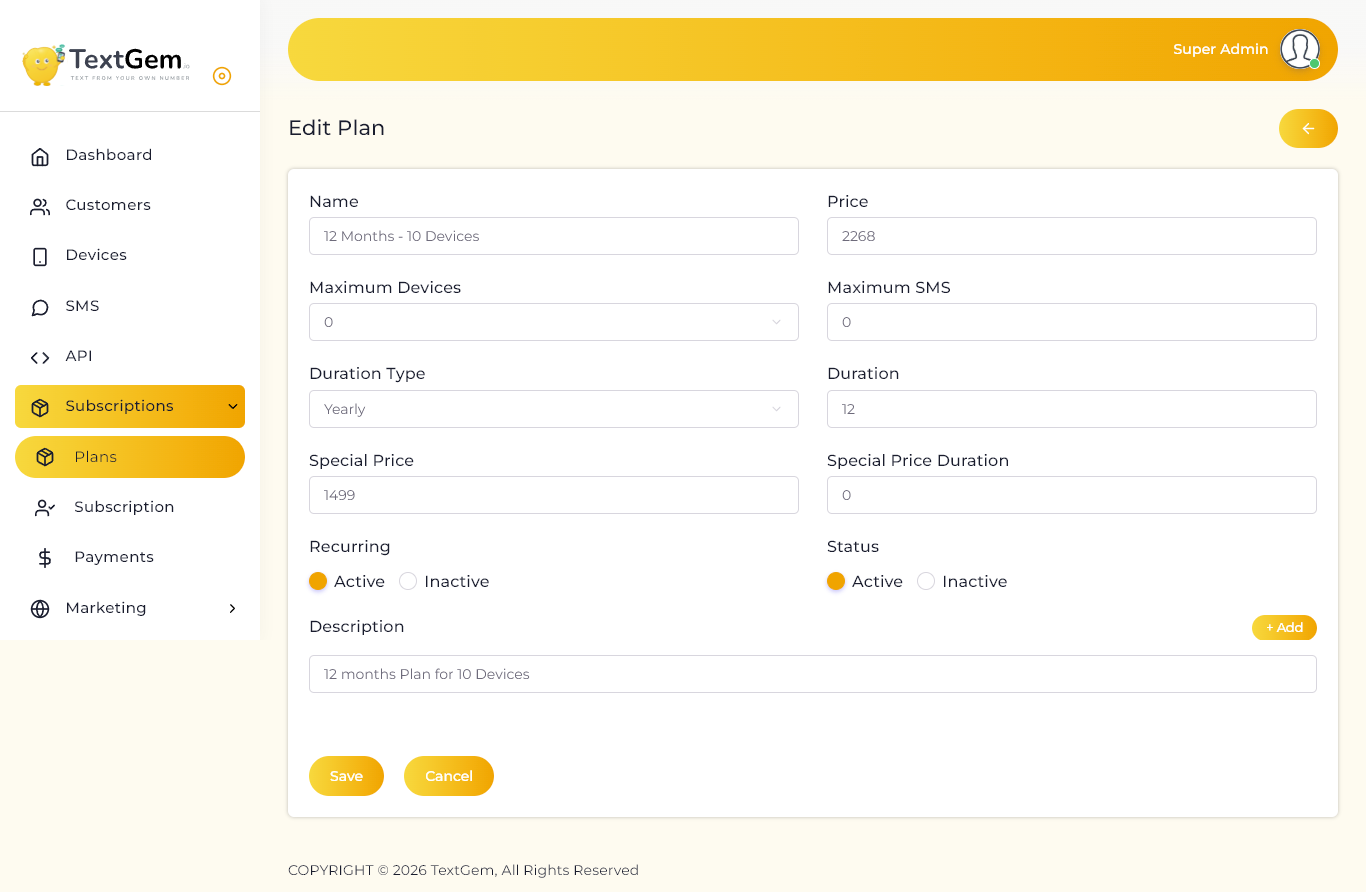
The Add Plan page enables administrators to configure every aspect of a subscription plan, including its pricing, billing cycle, device allowance, SMS limits, recurring settings, and availability.

Plan Information

The first section contains the basic information required to identify and configure the subscription plan.

Available Fields

Name – Enter the subscription plan name.
Price – Specify the plan price.
Maximum Devices – Select the maximum number of devices allowed.
Maximum SMS – Enter the SMS limit included with the plan.
Duration Type – Select the billing period (Weekly, Monthly, Yearly, etc.).
Duration – Specify the subscription duration.

Result

Basic subscription details are configured.
The plan is prepared for additional settings.

Special Pricing

Special pricing can be configured for promotional or discounted subscription plans.

Available Fields

Special Price – Enter the promotional price.
Special Price Duration – Specify how long the promotional price remains valid.

Result

Promotional pricing is applied to the plan.
Discounts remain active for the configured duration.

Plan Settings

Configure how the subscription behaves and whether it is available for customers.

Recurring
Choose whether the subscription renews automatically.

Available options include:

Active – Enables recurring billing.
Inactive – Creates a one-time subscription.

Status

Control whether the plan is available for assignment.

Available options include:

Active – Makes the plan available.
Inactive – Hides the plan from new assignments.

Result

Subscription behavior is configured.
Plan availability is defined.

Description

Use the description field to provide additional information about the subscription plan.

Description Field

The description may include:

Plan features
Benefits
Usage limitations
Additional notes

Result

Customers and administrators receive more information about the plan.

Add Features

The + Add button allows administrators to include additional plan features or benefit entries.

To Add Features

Click + Add.
Enter the required feature information.
Repeat as needed.

Result

Additional plan features are included with the subscription.

Save the Plan

Once all required information has been entered, save the subscription plan.

To Save a Plan

Complete all mandatory fields.
Verify the plan configuration.
Click Save.

Result

A new subscription plan is created.
The plan becomes available in the Plans list.

Cancel

If you do not want to create the plan, you can cancel the operation.

To Cancel

Click Cancel.

Result

No plan is created.
All unsaved changes are discarded.
You are returned to the previous page.