Guide

Users

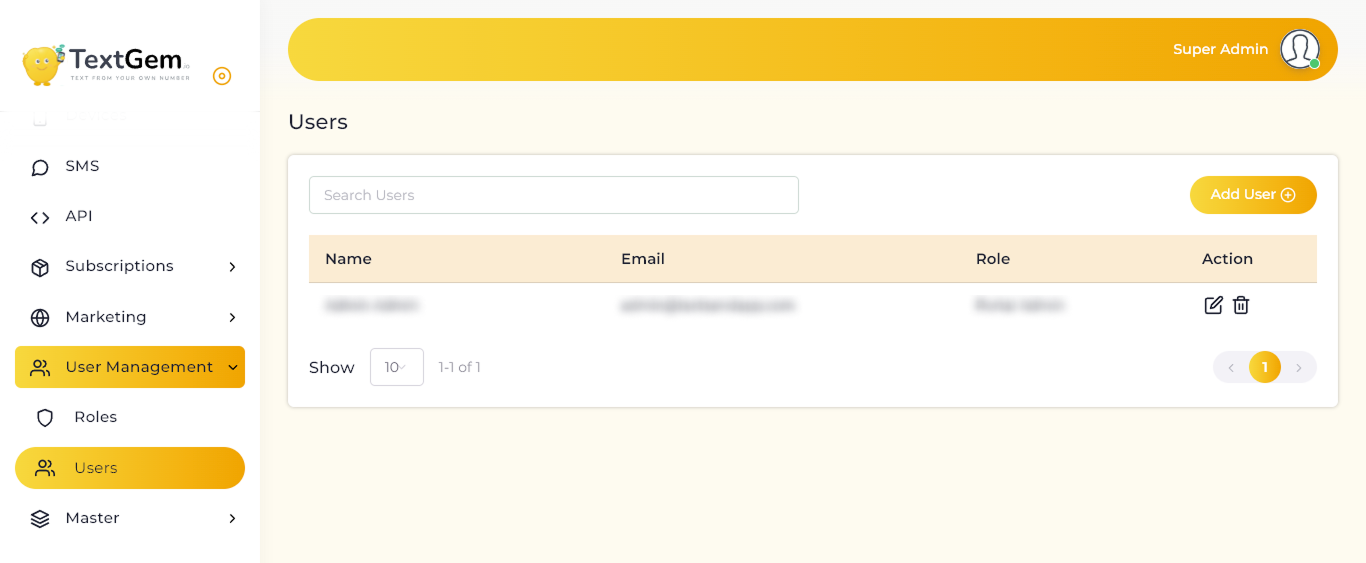
The Users page allows administrators to view and manage user accounts that can access the platform. From this page, you can search for users, add new users, update user details, assign roles, and remove accounts when required.

Users Overview

Each user account is displayed in a table with their name, email address, assigned role, and available actions. Roles determine what modules and features a user can access within the platform.

Viewing Users

The Users table displays the following information:

Name — The user’s full name.
Email — The email address linked to the user account.
Role — The role assigned to the user, such as Portal Admin or Customer.
Action — Options to edit or delete the user account.

Searching Users

Use the Search Users field to find a user quickly.

Click the search field.
Enter the user’s name, email address, or role.
Matching user records will appear in the table.

Editing a User

To update an existing user:

Locate the user in the table.
Click the Edit icon in the Action column.
Update the required details, such as name, email address, or role.
Save the changes.

Changes to a user’s role will update the permissions available to that user.

Deleting a User

To remove a user account:

Locate the user in the table.
Click the Delete icon in the Action column.
Confirm the deletion when prompted.

Deleting a user may permanently remove their access to the platform. Ensure the account is no longer required before deleting it.

Pagination and Record Display

The page includes controls to manage how user records are displayed.

Use the Show dropdown to select the number of records displayed per page.
Use the pagination controls to move between pages.
The record counter shows the current range and total number of users.

Best Practices

Assign each user the correct role based on their responsibilities.
Use unique email addresses for every user account.
Review user access regularly.
Remove access for users who no longer need the platform.
Limit Portal Admin access to authorized administrators only.

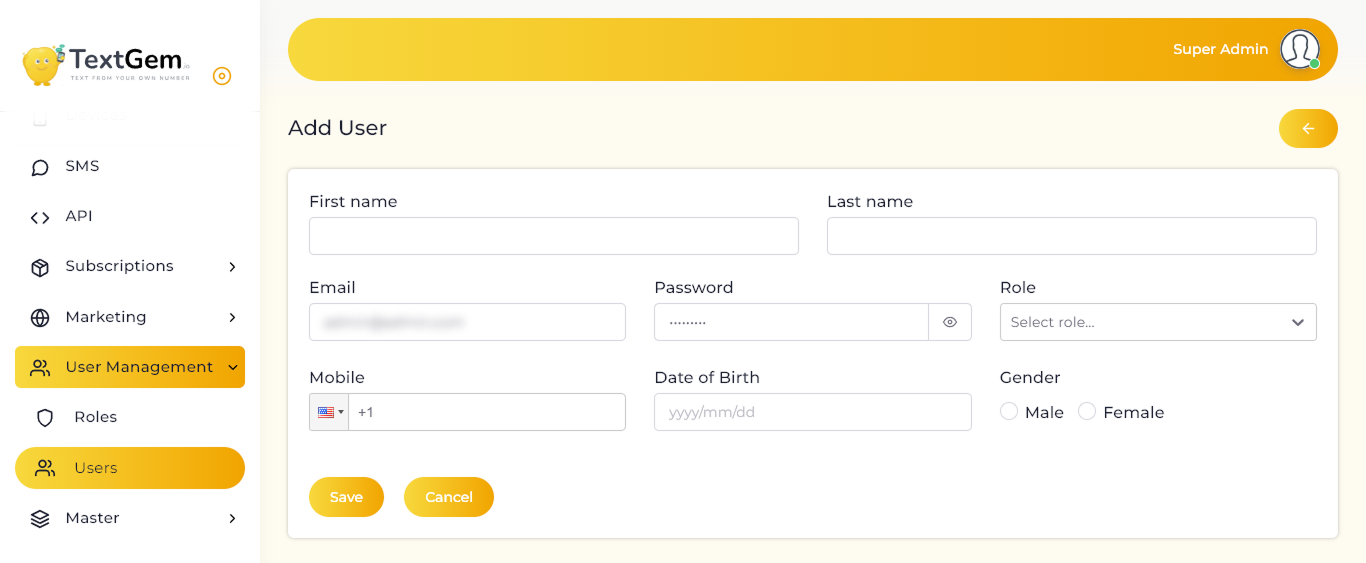
Add User Overview

When adding a user, provide their personal details, contact information, login credentials, and assigned role. The selected role determines which modules and actions the user can access after signing in.

User Details

First Name

Enter the user’s first name.

Last Name

Enter the user’s last name.

Email

Enter a valid email address for the user. This email may be used as the user’s login ID and for account-related communication.

Password

Create a secure password for the user account. Use the visibility icon to show or hide the password while entering it.
A strong password should include a combination of uppercase letters, lowercase letters, numbers, and special characters.

Role Assignment

Use the Role dropdown to assign a role to the user.

The assigned role controls the user’s access permissions. For example:

Portal Admin — Can manage administrative features based on assigned permissions.
Customer — Can access customer-related features based on assigned permissions.

Select the role that matches the user’s responsibilities.

Contact and Personal Information

Mobile

Enter the user’s mobile number. Select the appropriate country code before entering the number.

Date of Birth

Enter the user’s date of birth in the required format:

yyyy/mm/dd

Gender

Select the appropriate gender option:

Male
Female

Saving the User

To create the user account:

Complete all required fields.
Select the appropriate role.
Review the entered information.
Click Save.

The new user will be added to the Users list after the account is created successfully.
Use Cancel to discard the entered details without creating the user.

Returning to the Users List

Use the back arrow at the top-right of the page to return to the Users page.
Make sure the user information is saved before leaving the page.

Best Practices

Use a valid and unique email address for each user.
Assign the minimum required role permissions.
Use strong passwords for all user accounts.
Verify the mobile number and country code before saving.
Review user access regularly and update roles when responsibilities change.