Managing Customer Subscriptions
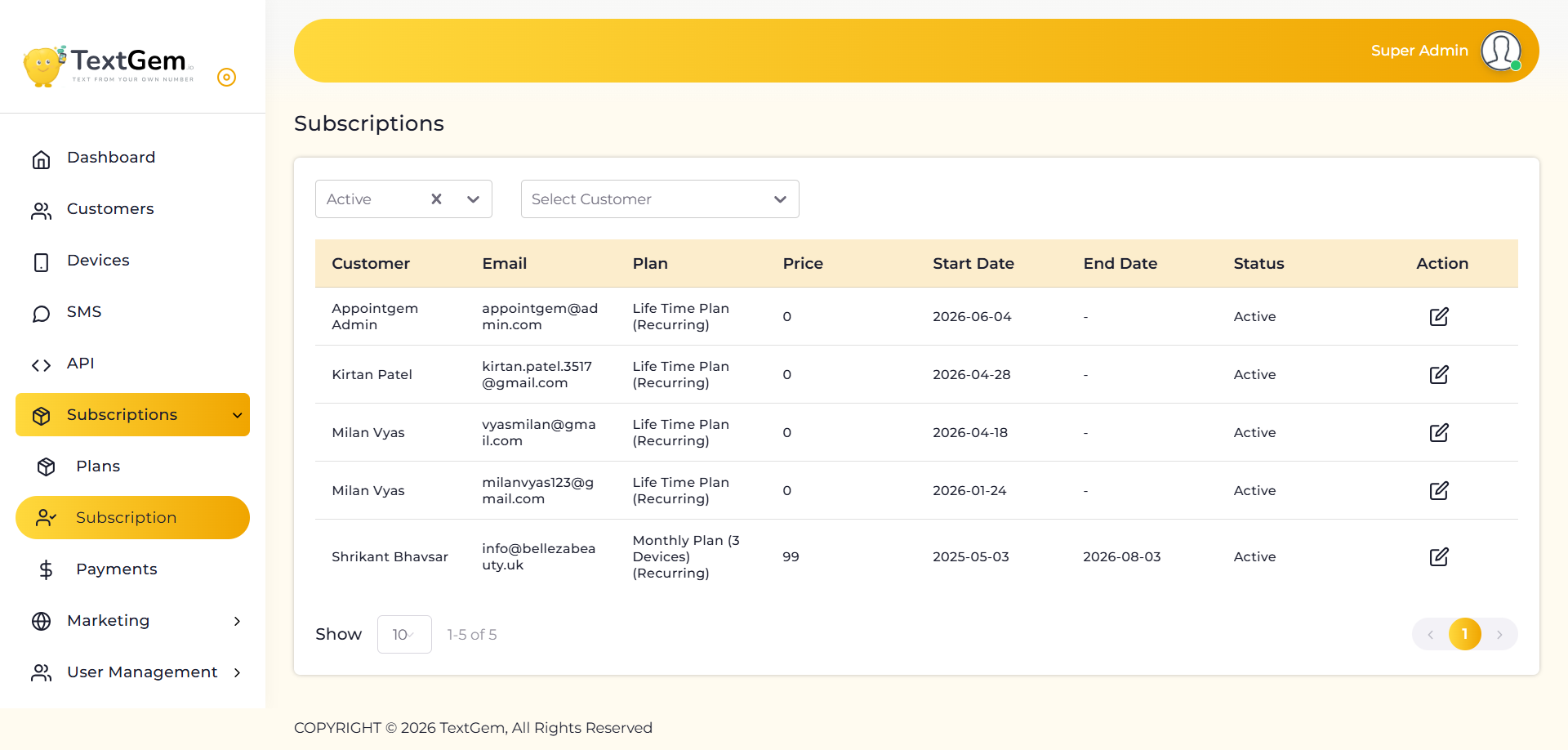
Managing Customer Subscriptions Overview
The Subscriptions page provides a centralized view of all customer subscriptions, including plan information, pricing, subscription dates, and current status. This helps administrators keep track of active plans, monitor subscription periods, and ensure customers have the correct service access.
Subscription List
The subscription table displays detailed information for each customer’s subscription.
Available Information
Each subscription record includes:
This overview makes it easy to review subscription details and identify active or expiring plans.
Filter Subscriptions by Status
Use the Status filter to display subscriptions based on their current state.
Available Status Options
Benefits
Filter by Customer
The Select Customer dropdown allows you to display subscriptions for a specific customer.
To Filter by Customer
This is especially useful when reviewing an individual customer’s subscription history.
Viewing Subscription Details
Each row provides important subscription information.
Plan Information
The Plan column displays the subscription package assigned to the customer, such as:
Administrators can quickly identify which services are assigned to each customer.
Subscription Status
The Status column indicates the current state of the subscription.
Common Status Values
Monitoring subscription status helps ensure uninterrupted service for customers.
Editing a Subscription
The Edit icon in the Action column allows administrators to modify an existing subscription.
To Edit a Subscription
Information That Can Be Updated
Pagination and Record Display
The Subscriptions page supports pagination for efficient navigation through subscription records.
Features
Best Practices
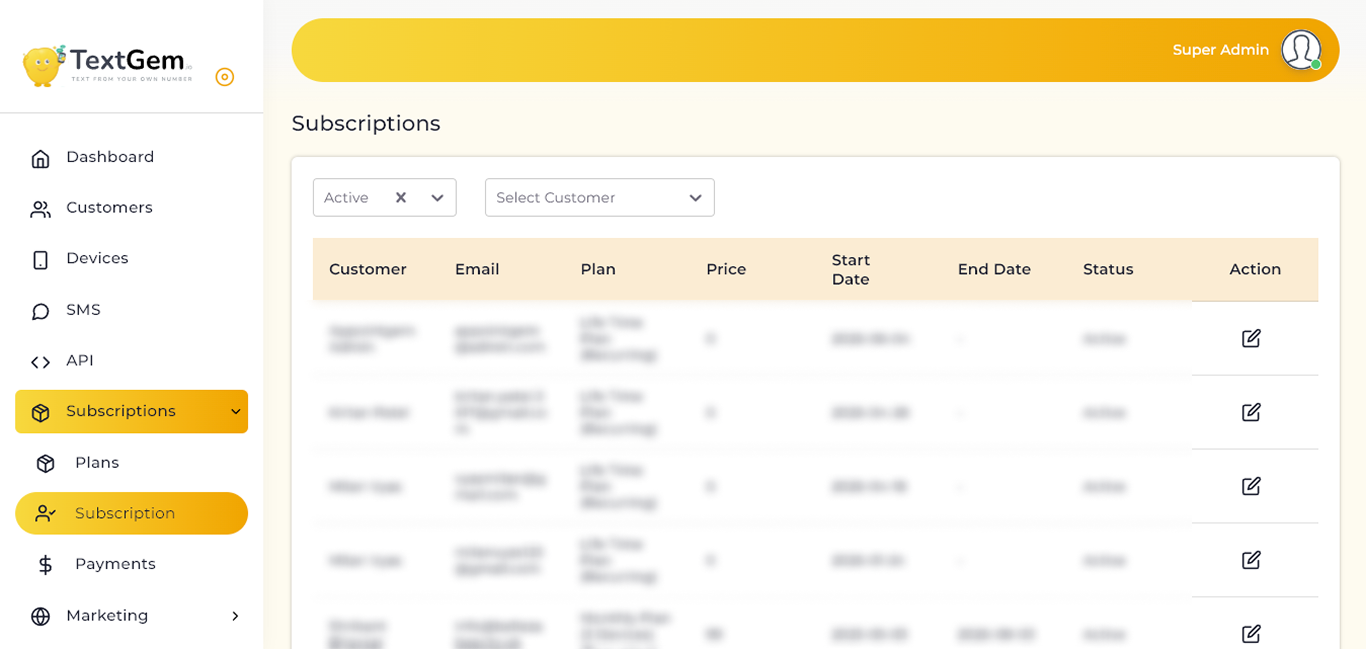
Editing a Customer Subscription overview
The Edit Subscription page is used to manage subscription details after a plan has been assigned to a customer. Certain fields, such as the customer name and subscription plan, are displayed for reference, while configurable fields can be updated to reflect changes in the customer’s subscription.
Customer Information
The Customer field displays the name of the customer associated with the subscription.
Details
Subscription Plan
The Plan field displays the subscription package currently assigned to the customer.
Examples
This information helps administrators verify the selected subscription before making updates.
Subscription Dates
Start Date
The Start Date indicates when the subscription became active.
End Date
The End Date specifies when the subscription expires.
When to Update
Maximum Devices
The Maximum Devices field defines the number of devices the customer is allowed to connect under the current subscription.
Benefits
Maximum SMS
The Maximum SMS field specifies the maximum number of SMS messages allowed under the subscription.
Typical Uses
Subscription Price
The Price field displays the cost associated with the subscription.
When to Update
Subscription Status
Use the Status option to enable or disable the subscription.
Available Options
Updating the subscription status allows administrators to control customer access without deleting subscription records.
Saving Changes
If you do not want to keep the changes, click Cancel to return without saving.